
This free Excel spreadsheet compares rebates earned on eligible supplier purchases with credits and cash actually received. It keeps agreement periods, purchase activity, settlement allocations, and evidence references together so you can investigate unreceived, excess, and unmatched amounts at a deliberate review date.
Start with the finished workbook, or follow the separate build-from-scratch lesson below to understand the core calculation. Rates, eligibility, and settlement terms come from your supplier agreements—not from assumed industry rules.
Download and use the supplier rebate reconciliation template
Download the free XLSX directly from this page; no registration is required. Save a working copy before replacing the fictional records. The file includes three entry sheets—Agreements, Purchases, and Settlements—plus Reconciliation, Guide, and the calculation helpers. You do not need to rebuild formulas or work in Calculations to complete a reconciliation.
Open Guide and enter your review date in Guide!B2. This snapshot controls which dated activity enters the comparison. Use an actual spreadsheet date displayed as MM/DD/YYYY, without a time component. Gather the applicable agreements, purchase and return documents, supplier credit notes, and cash receipt evidence before entering records.
- Enter agreement-period records first in Agreements!A2:M25. Each needs a unique text ID, supplier, earning dates, settlement due date, tier method, thresholds, rates, and agreement evidence.
- Enter purchase and return events in Purchases!A2:I501. Assign each event to its agreement-period ID and include eligibility, dates, a signed USD amount, and supporting references.
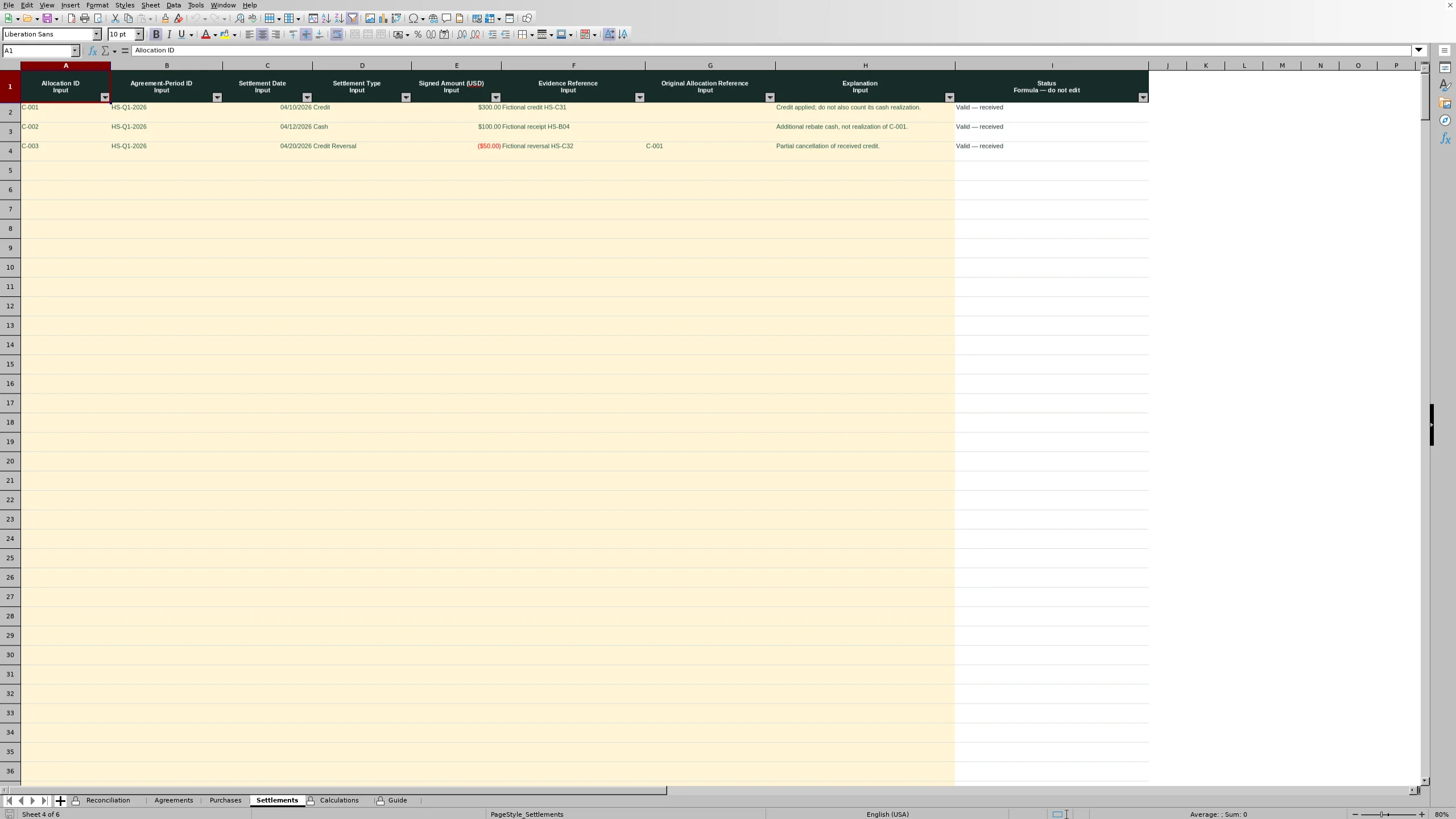
- Enter settlement allocations in Settlements!A2:H501. Identify the agreement-period being settled, receipt date, type, signed amount, and evidence. Include the original allocation reference for a reversal.
- Read each entry sheet’s Status column, then inspect Reconciliation for the earned-versus-settled comparison and separate exceptions. Identify balances needing follow-up and save the dated working copy with its supporting documents.
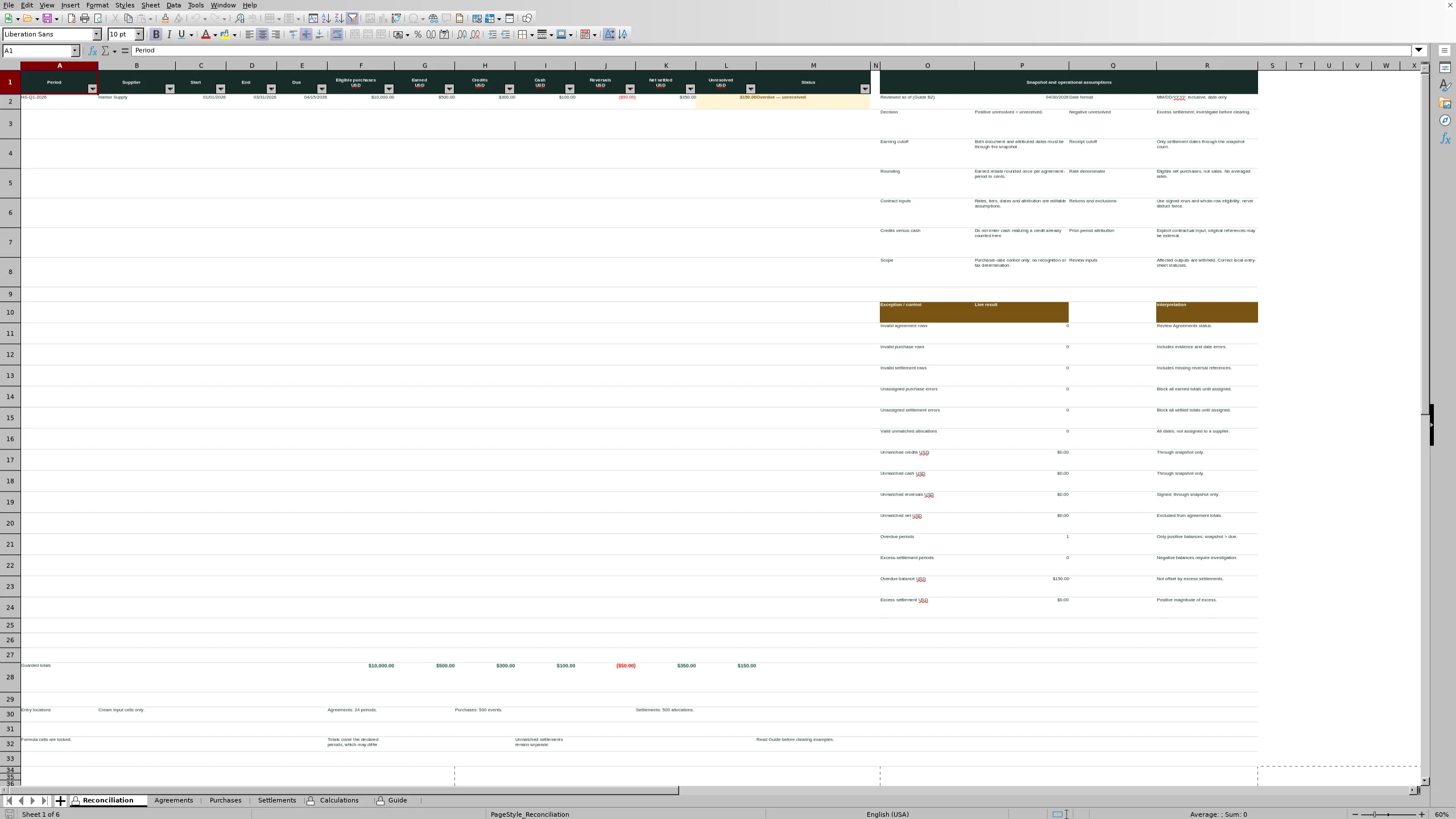
The included fictional Harbor Supply example shows what the result means. At the 04/30/2026 snapshot, its Q1 2026 agreement has $500.00 earned, $350.00 net settled, and $150.00 unresolved. Because settlement was due on 04/15/2026, the status is “Overdue — unreceived.” The next action is to substantiate the remaining amount and request settlement or an explanation—not to treat the earned estimate as cash received.
To replace that example, clear contents only in Agreements!A2:M2, Purchases!A2:I4, and Settlements!A2:H4, then set your own snapshot. Keep headers, Status formulas, Reconciliation, and Calculations intact. Enter or paste values only into the cream Input cells. The prepared capacity is 24 agreement-period records, 500 purchase events, and 500 settlement allocations; these are fixed ranges, not automatically expanding registers.
Create a small rebate reconciliation in Excel
For a smaller version you can build yourself, create a new workbook with one sheet named Example. This lesson uses a single fictional Supplier A agreement with a flat 4% rebate. Its cells are separate from the download’s six-sheet layout, and its subtotals require manual checking before entry.
Set up the period and evidence-backed inputs
Enter “Single-period supplier rebate reconciliation” in A1 and “Supplier” in A2, with Supplier A in B2. Label A3:A6 “Earning start (MM/DD/YYYY),” “Earning end (MM/DD/YYYY),” “Settlement due (MM/DD/YYYY),” and “Snapshot date (MM/DD/YYYY).” Enter actual date-only values of 01/01/2026, 03/31/2026, 04/15/2026, and 04/30/2026 in B3:B6, respectively.
In A7, enter “Contractual flat rebate rate”; enter 4% in B7, equivalent to 0.04. In C7, enter “Fictional Supplier A agreement: 4% of eligible net purchases.” Set A8 to “Manually verified activity through snapshot,” B8 to “Amount (USD),” and C8 to “Evidence reference or note.” Then enter the following rows.
| Row | Column A label | Column B value | Column C evidence or note |
|---|---|---|---|
| 9 | Eligible purchases | 6000 | Fictional invoice A-101; period and both cutoff dates checked |
| 10 | Eligible returns, signed | -1000 | Fictional return A-R01 against A-101; attribution checked |
| 11 | Excluded purchases, not in eligible subtotal | 800 | Fictional invoice A-102; excluded by agreement |
| 12 | Credits received | 120 | Fictional credit A-C01; received through snapshot |
| 13 | Additional cash received | 50 | Fictional receipt A-B01; not realization of A-C01 |
| 14 | Settlement reversals, signed | -20 | Fictional reversal A-C02 against A-C01; through snapshot |
Before entering these subtotals, verify that the purchase and return activity belongs to the declared earning period. Both document and attributed earning dates must be through the snapshot. Settlement amounts must represent actual receipts or reversals through that date. This small sheet records those checks in the notes; it does not perform transaction-level date attribution.
The excluded $800.00 is documented in B11 but is not part of B9. Do not subtract it from an eligible subtotal that never included it. Leave row 15 blank, and display monetary inputs and results as USD with two decimal places. Display B7 as a percentage and B3:B6 as MM/DD/YYYY dates.
Add the five result formulas
In A16, enter “Eligible net purchases (USD).” Enter the following in B16. It adds eligible purchases and the signed return only when both inputs are numeric. COUNT prevents a missing required amount from silently acting like zero.
=IF(COUNT(B9:B10)=2,SUM(B9:B10),"Review inputs")In A17, enter “Earned rebate (USD).” Enter this formula in B17. It multiplies the eligible base by the contractual rate and rounds the result to cents. A negative base or a rate outside 0%–100% produces a review message.
=IF(AND(ISNUMBER(B16),ISNUMBER(B7)),IF(AND(B16>=0,B7>=0,B7<=1),ROUND(B16*B7,2),"Review inputs"),"Review inputs")In A18, enter “Net settled (USD).” Enter this in B18. It adds credits, additional cash, and signed reversals, requiring all three amounts to be numeric. Enter zero when a category is confirmed to have no activity; do not use zero for an unknown amount.
=IF(COUNT(B12:B14)=3,SUM(B12:B14),"Review inputs")In A19, enter “Unresolved (USD).” Enter this in B19. It subtracts net settlement from earned rebate, preserving a negative difference when settlement exceeds earnings.
=IF(AND(ISNUMBER(B17),ISNUMBER(B18)),B17-B18,"Review inputs")In A20, enter “Status.” Enter this in B20. It distinguishes a zero difference, excess settlement, and a positive balance. A positive balance becomes overdue only after the due date.
=IF(AND(ISNUMBER(B19),ISNUMBER(B5),ISNUMBER(B6)),IF(B19=0,"Reconciled",IF(B19<0,"Excess settlement",IF(B6>B5,"Overdue — unreceived","Unreceived"))),"Review inputs")These formulas use English function names, comma arguments, and a decimal point for the stated US settings. Enter each in its designated cell; no formula copying is needed.
Check the baseline, then change the cash receipt
Your independent baseline check is $6,000.00 less the $1,000.00 return, leaving $5,000.00 eligible purchases. Four percent earns $200.00. The $120.00 credit, $50.00 additional cash, and -$20.00 reversal leave $150.00 net settled. B19 should therefore show $50.00 unresolved, and B20 should read “Overdue — unreceived.”
Now change only B13 from 50 to 100. Earned rebate stays at $200.00, but net settled becomes $200.00. The unresolved balance becomes $0.00 and the status becomes “Reconciled.” This demonstrates why receiving a rebate changes settlement, not the amount earned from purchases.
Save this separate teaching workbook. It deliberately omits automatic event attribution, tier selection, and unmatched-key handling. Use the supplied workbook when you need those controls, and retain the manual source checks even when formulas produce the expected result.
Match the earning model to the agreement
Before relying on an earned amount, establish how the supplier’s agreement applies its rates. The download offers two methods in Agreements column F. Retroactive applies the attained tier rate to all eligible net purchases for that agreement-period. Marginal applies rates to separate portions of that purchase base: below threshold 2, between thresholds 2 and 3, and above threshold 3.
The fictional Harbor Supply agreement uses thresholds of $0.00, $10,000.00, and $20,000.00 with rates of 2%, 5%, and 8%. Its $10,000.00 eligible base lands exactly on the second threshold, so the retroactive calculation uses 5%. Under the Marginal option, the same $10,000.00 base would instead earn $200.00 because the entire base lies in the first portion. Choose the method from the contract wording, not the one that makes the supplier’s statement agree.
A return can change more than the purchase base. Under the workbook’s formulas, changing the fictional return in Purchases!G3 from -$2,000.00 to -$3,000.00 would leave $9,000.00 eligible purchases. The retroactive rate would fall to 2%, producing $180.00 earned and -$170.00 unresolved against unchanged settlement of $350.00. This is an expected formula-based sensitivity, not a separate recorded transaction. It illustrates why a collection question can become an excess-settlement question after a return.
Complete all three threshold/rate pairs in Agreements columns G:L. The first threshold must be zero, later thresholds must be nondecreasing, and rates must be between 0% and 100%. Zero rates are valid; equal rates provide a flat rebate. The denominator is eligible net purchases, not sales. Earned rebate is rounded once per agreement-period to cents after eligible activity is aggregated.
These are editable contractual assumptions. If an agreement uses a different structure, obtain its terms and adapt the model before using it. Do not invent a rate, eligibility rule, or interpretation to fill an essential gap.
Attribute purchases, returns, and exclusions
The purchase register separates Document Date in column C from Attributed Earning Date in column D. The first preserves the date of the source document. The second identifies when that activity belongs in the selected agreement’s earning period under your contractual interpretation.
The attributed date must fall within the agreement’s earning start and end dates. Both purchase dates must also be on or before Guide!B2 for an otherwise-valid eligible event to contribute at that snapshot. A later-issued return attributed to an earlier earning period does not change a snapshot before its document date. Preserve the actual document date rather than backdating it to force inclusion.
Enter Purchase amounts as nonnegative and Return amounts as nonpositive in Purchases column G. Eligibility in column F applies to the whole row. If an invoice contains both eligible and excluded purchases, split it into uniquely identified events with references that trace back to the invoice. The included $3,000.00 excluded purchase has Eligible? set to No, so it contributes zero—not an additional negative adjustment.
For returns, enter the original purchase reference in column I and apply the eligibility and attribution supported by the agreement. That reference can identify a purchase held outside this workbook. Its presence helps you locate evidence; it does not automatically establish that the return belongs to the selected period.
A numeric zero is a valid supported amount, while an empty amount on an active row needs correction. After checking the row statuses, compare the register with your source purchase records for completeness. A valid status cannot identify a transaction that was never entered, and an accurate formula cannot compensate for an omitted return.
Allocate credits, cash, and reversals once
A settlement allocation assigns part or all of a received rebate to one agreement-period. Its unique Allocation ID in Settlements column A identifies the row; the agreement-period ID in column B identifies what it settles. The evidence reference in column F identifies the external credit note, receipt, or reversal document.
Use Credit or Cash for nonnegative amounts. Use Credit Reversal or Cash Reversal for nonpositive amounts, and enter the original allocation reference in column G. The fictional register contains a $300.00 credit, $100.00 of additional cash, and a -$50.00 partial credit cancellation. These are three different events, not three ways of describing the same receipt.
Do not count cash that merely realizes an already-counted credit again. Otherwise, settlement is overstated even if every row passes the validity checks. The Explanation column can record why a cash receipt is additional or how a reversal relates to an earlier credit. It is optional, but useful when someone later needs to understand the allocation.
When one receipt covers several periods, split it into distinct allocation rows and manually tie the allocated amounts back to the source total. Keep each row’s period assignment supported by the remittance or other evidence. A later payment can settle an earlier earning period; it does not become newly earned rebate simply because it arrived later.
Settlement Date in column C controls inclusion through the snapshot independently of the earning period’s end. A valid later-dated receipt can remain in the register without entering the current comparison. Check the local Status column before interpreting settlement totals, and retain the original receipt and reversal documents outside the workbook. Required text references are not automatically authenticated.
Turn differences into follow-up actions
Read Reconciliation as a comparison of different measures. Eligible net purchases are the purchase base. Earned rebate is the estimate under the declared contract inputs. Net settled is allocated credit and cash activity, including signed reversals, through the snapshot. Unresolved is earned minus net settled.
A positive unresolved amount is unreceived. Prioritize it for follow-up when the snapshot is later than the settlement due date. On the due date itself, a positive balance remains “Unreceived,” not overdue. Check the supporting purchases, terms, and receipts before asking the supplier for the remaining settlement.
A negative amount is excess settlement requiring investigation. Look for duplicate receipts, cash counted after its underlying credit, incorrect period allocation, or reduced earnings following a return. A zero difference means the entered comparison reconciles; it does not prove that all source activity is complete or correctly classified.
Review unmatched settlements as a separate work queue. An otherwise-valid settlement with an unknown agreement-period ID does not reduce any agreement’s unresolved balance. Check its source evidence, then correct the ID or restore the supported agreement-period record. The workbook does not assign it an invented supplier.
Reconciliation!P16 counts valid unmatched allocations across all dates. P17:P20 reports unmatched dollars only through the snapshot, so a count can exist without a current dollar balance. Separately, P21:P24 reports overdue and excess-settlement counts and amounts. These separate figures are more useful for follow-up than a net total that could hide one period’s shortage behind another period’s excess. Totals also combine the entered agreement periods, which may cover different lengths of time.
Recover withheld results without hiding errors
“Review inputs” means an affected result has been withheld. Correct the underlying entry instead of typing over the result or deleting a transaction merely to remove the warning.
- Check the deliberate snapshot in Guide!B2. It must be an actual date-only spreadsheet value, not text or a date with a time component.
- Read Agreements!N2:N25 for the specific agreement message. Correct missing terms, evidence, dates, or duplicate period IDs first.
- Read Purchases!J2:J501 and Settlements!I2:I501. Repair the indicated amount, sign, reference, date, or agreement assignment.
- Return to Reconciliation and confirm that the relevant comparison, exception counts, and totals are usable after the correction.
An invalid assigned transaction withholds the affected period’s relevant side of the comparison. An unassigned invalid purchase blocks earned totals; an unassigned invalid settlement blocks settled totals. This prevents a partially assigned register from appearing complete. An otherwise-valid unmatched settlement is different: it remains visible separately for assignment rather than being treated as a valid settlement of an existing period.
Common repairs include replacing numeric text with a numeric amount, restoring a missing evidence reference, correcting a return’s sign, or restoring a deleted agreement record. IDs must be nonblank text and are matched literally and case-insensitively. Changing capitalization does not create a unique ID. Preserve meaningful punctuation; it is part of the identity, not a wildcard instruction.
Zero is valid for supported amounts and rates, but a numeric zero is not a valid ID or a substitute for an unknown amount. Negative eligible net purchases require contractual review rather than an automatic zero floor. Recheck the source records and attribution before deciding how that situation should be represented.
Save a reviewable snapshot and continue the register
For a useful handoff, retain a dated XLSX copy, the supporting documents, and a concise external follow-up list linking each open issue to an agreement-period or allocation ID. Record what evidence is missing and what action remains. The workbook does not supply attachment storage, reviewer sign-off, task ownership, or an audit-history feature.
Preserve the current snapshot before advancing the working register. Changing Guide!B2 can include later purchase documents and receipts and change overdue classifications. A saved copy records the basis of that review more clearly than a continually changing file alone.
The existing Reconciliation print area is A1:R33, covering the comparison, assumptions, exception panel, and guarded totals in F28:L28. Inspect print preview for legibility; do not assume a guaranteed one-page layout. Keep amounts labeled USD, display cents, and retain MM/DD/YYYY dates.
Settlement inputs retain their entered precision even when displayed with two decimals. A displayed $0.00 difference is therefore not necessarily exactly zero. The workbook treats differences below USD 0.0000001 as arithmetic noise only; that tolerance is not a business write-off policy.
When sorting entry data, include the full record through its Status column: Agreements!A1:N25, Purchases!A1:J501, or Settlements!A1:I501. Preserve the formula cells. These entry sheets are intentionally unprotected, so a locked cell property alone does not prevent an accidental paste over a Status formula.
Continue within the prepared endpoints. Do not insert rows or assume activity beyond agreement row 25 or transaction row 501 will be included. Archive records deliberately or redesign and revalidate a larger model when capacity is insufficient. The finished deliverable supports purchaser-side contractual reconciliation; it does not determine accounting recognition, journal entries, tax timing, or legal entitlement to a disputed rebate.
Editorial identities and topic areas

Cash flow & accounting
Guides on cash timing, supplier adjustments, and accounting checks. The focus is tracing a result to its inputs, separating estimates from records, and explaining unresolved differences.
Profile and guides →
Margins & business planning
Guides on sales-channel margins, cost assumptions, and small-business planning. The focus is keeping the cost basis consistent, comparing scenarios, and explaining what a result does not include.
Profile and guides →